A hardware wallet is a dedicated device that generates and protects the keys used to authorise cryptocurrency transactions. Setting one up for the first time involves several sensitive steps: inspecting the device, creating a PIN, writing down a recovery phrase, and checking the address before you receive or send anything. Each step is easy to rush, and mistakes are often hard to undo.
This guide walks through a careful setup process for beginners. It explains what to check before you start, how the setup usually works, how to store your recovery information, and how to verify addresses before a transfer. Device menus, software, and recovery steps differ between manufacturers, so treat this article as a planning guide and follow the official instructions for your exact device.
- Hardware wallet basics for beginners
- Before you start: buying and inspecting the device
- Step-by-step setup process
- Recovery phrase storage rules
- Verifying addresses and your first transfer
- Common setup mistakes
- Troubleshooting and recovery basics
- Hardware wallet setup checklist
- Frequently asked questions
- Interactive setup planner
- Printable 10-section planning workbook
Hardware Wallet Basics for Beginners
Before setting up a device, it helps to understand what it does and does not store. Cryptocurrency balances are recorded on a blockchain. A hardware wallet mainly holds the keys that authorise transactions and keeps them on the device during normal use.
- Device keys: The private keys are generated and kept on the hardware device. They should not be copied to a general-purpose computer.
- Recovery phrase: A list of words, usually shown during setup, that may restore access on a compatible wallet. Anyone who has it may be able to access the funds it controls.
- PIN: A code that unlocks the device locally. It is not the same as the recovery phrase, and a PIN alone may not restore access on a new device.
- Passphrase (optional): An additional word or phrase that some devices support. It can add protection, but losing it can make the wallet impossible to restore.
- Companion software: An app or browser tool used to see balances and prepare transactions. The device still needs to confirm what it signs.
Before You Start: Buying and Inspecting the Device
Many setup problems begin before the device is powered on. Where you buy it and how you inspect it matter.
Buying Safely
- Buy from the manufacturer or an authorised retailer. Check the manufacturer's official website for a list of sellers, rather than relying on an advertisement or search result.
- Avoid used devices. A previously set-up device may have been configured by someone else.
- Be cautious of preset devices. If a device arrives with a recovery phrase already written in it, or with a note asking you to use a specific seed, do not use it. Set up your own wallet on the device.
Inspecting the Package
- Check the packaging seal. Look for tampering, resealed boxes, or damaged tamper-evident labels.
- Confirm the device authenticity. Follow the manufacturer's official instructions for verifying authenticity. Do not rely on a verification page supplied by a seller or by an unsolicited message.
- Keep the box and documents. They may help with support requests and warranty questions and can show what the original packaging looked like.
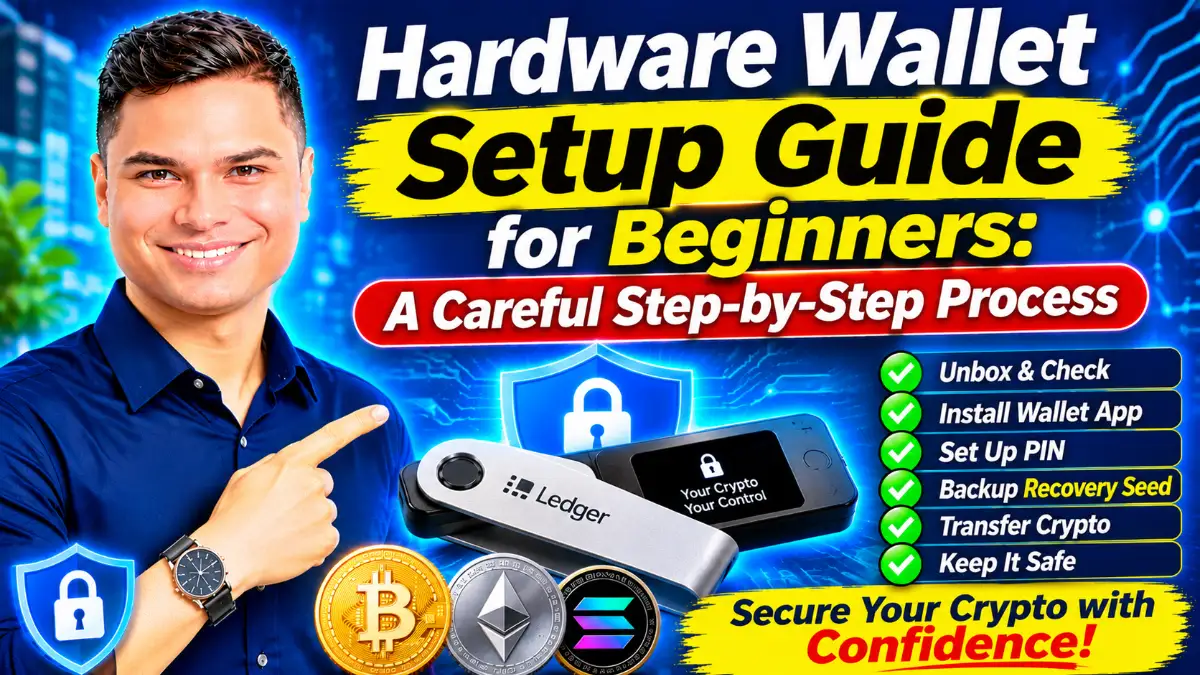
Step-by-Step Setup Process
The exact steps differ by manufacturer, but beginners commonly follow a process similar to the one below. Use the on-screen prompts and the official documentation for your device, and do not skip a step simply because it seems repetitive.
- Prepare a private workspace. Set up the device in a quiet place where others cannot see the screen, your paper, or your keyboard. Avoid cameras and public Wi-Fi when you handle sensitive information.
- Download the companion software from an official source. Use the manufacturer's verified website or official app store listing. Confirm the publisher name before installing anything.
- Connect the device and check for updates. Follow the prompts shown by the official software. If a firmware update is offered, review what it says and confirm the update only through official channels.
- Choose to create a new wallet. For a first-time setup, select the option to create a new wallet on the device. Use the restore option only when you are recovering a wallet you already own with your own verified recovery phrase.
- Set a PIN that is hard to guess. Avoid birthdays, repeated digits, and obvious patterns. Read how the device handles failed PIN attempts, because some devices limit or wipe access after repeated errors.
- Write the recovery phrase on paper. Record each word in the order shown, with careful spelling and numbering. Do not photograph it, type it into a file, or save it to a cloud note.
- Complete the backup verification step. Some devices ask you to confirm selected words from your written copy. Follow the device prompts exactly. If a verification step is not offered, check the manufacturer's guidance on how to confirm your backup.
- Decide whether to use a passphrase. A passphrase can add a layer of protection, but it must be recorded and remembered separately. If you forget it, the wallet may not be recoverable. Beginners may prefer to understand the trade-off fully before enabling one.
- Check the receiving address on the device screen. Before you share an address to receive assets, confirm that the address shown by the companion software matches the address displayed on the device.
- Store your recovery sheet offline and note the setup date. Keep the paper in a secure place and record only non-sensitive details, such as the device model and the date of setup, in your planner.
Recovery Phrase Storage Rules
The recovery phrase is the most sensitive part of most self-custody setups. Storage decisions should protect it from disclosure, loss, and damage at the same time. Those goals can pull in different directions, so plan both.
- Keep it offline. Avoid photos, screenshots, messages, emails, password managers, and cloud notes, which may sync or be exposed through account access.
- Protect it from physical damage. Paper can be destroyed by water, fire, or wear. Consider a durable and tested storage method that matches your situation.
- Limit who knows it exists. Telling a trusted person where the backup is kept may be part of an inheritance plan, but sharing the phrase itself increases risk.
- Make more copies only with a clear plan. Additional copies may reduce loss risk, but they also add more places where the phrase could be discovered. Balance these risks deliberately.
- Never let anyone "verify" it for you. A genuine setup does not require you to read your phrase to a support agent, website, or app.
Verifying Addresses and Your First Transfer
Once the device is set up, the next steps focus on receiving and sending. An address shown in software can be altered by malware or a malicious page, so check the device screen whenever possible.
Many beginners make a small test transfer first. A test can help you confirm that you understand the process, but it does not prove that a recipient, website, or request is legitimate. Fees, minimum amounts, and network rules may also apply.
| Setup stage | What to verify | Common mistake |
|---|---|---|
| Purchase | The seller is the manufacturer or an authorised retailer listed on official channels. | Buying from an unverified listing or a used device. |
| Unboxing | The packaging seal is intact, and the device has no pre-written phrase. | Using a device that arrives with a recovery phrase already present. |
| Software | The companion app or update comes from the official source and matches the device instructions. | Installing software from a search advertisement or unsolicited link. |
| Backup | Words are recorded accurately on paper, and the device backup check is completed. | Photographing the phrase, typing it into a website, or skipping the check. |
| Receiving | The address shown in the software matches the full address on the device screen. | Sharing an address that was copied from a message or clipboard without checking. |
| Sending | Recipient, asset, network, amount, and fee match your intention on the device screen. | Approving on autopilot or sending on a network the recipient does not support. |
Common Setup Mistakes to Avoid
- Photographing or digitally saving the recovery phrase. Digital copies may sync to other devices or be exposed through account compromise.
- Entering the phrase into a website "to verify" the wallet. Genuine device setup does not require this.
- Following a call, message, or screen-sharing request for help. Look up official support yourself, and do not install unfamiliar remote-access tools.
- Using a PIN that is easy to guess. Choose one you can remember without writing it beside the device.
- Skipping the address check. Malware or a fake page can show a different address than the one on the device.
- Enabling a passphrase without a recovery plan. A forgotten passphrase may make the wallet unrecoverable.
- Sending a test amount to an unverified address. Verify the destination before any transfer, including a test.
Troubleshooting and Recovery Basics
Setup problems are common. Pause and work through them methodically rather than trying random fixes or downloads.
- Device is not detected: Try a different cable or port, check the official instructions for supported connection methods, and confirm browser or app permissions. Avoid installing unknown drivers or extensions.
- Firmware update looks unfamiliar: Confirm the update through the official app and the manufacturer's documented process. Stop if the prompt asks for your recovery phrase.
- Lost device, intact recovery phrase: Use the manufacturer's official restore process on a new verified device, entering the phrase only on the device itself and only in the official setup flow.
- Recovery phrase may be exposed: Treat the wallet as compromised. Consider creating a new wallet on a verified device and moving assets only after confirming the instructions, the destination, and the network. Transfers may be irreversible, so get verified guidance before acting.
Hardware Wallet Setup Checklist
Use this checklist as a reminder during setup. Each item is a general precaution, not a guarantee of safety.
- Buy from the manufacturer or an authorized retailer.
- Inspect the packaging seal and confirm no recovery phrase is already present.
- Verify device authenticity using the manufacturer's official instructions.
- Download companion software only from an official source.
- Install firmware updates only through official channels.
- Create a new wallet unless you are restoring one you already own.
- Set a PIN that is not easy to guess and understand the lockout behavior.
- Record the recovery phrase on paper and complete the device backup check.
- Store the recovery information offline with no photos, cloud notes, or messages.
- Verify each receiving address on the device screen before sharing it.
- Review the network, amount, and fee on the device before every transfer.
- Know where to find official support, and never share your recovery phrase with anyone.
Frequently Asked Questions About Hardware Wallet Setup
Can I set up a hardware wallet without a computer?
Some devices can be used with a phone or with limited functions on the device itself, while others rely on companion software on a computer. Check the manufacturer's documentation for your model to see what setup and transaction features it supports.
Is it safe to type my recovery phrase into a computer during setup?
Set up a new wallet on the device itself wherever possible, and avoid typing your recovery phrase into a computer. Entering a phrase during an official restore process may be necessary in some situations, but only on a verified device and through official instructions. Never enter it into a website, message, or support chat.
What is the difference between a PIN and a recovery phrase?
A PIN typically unlocks the device locally. A recovery phrase is generally used to restore wallet access on a compatible device. Losing the PIN may require a reset of the device, while anyone who has the recovery phrase may be able to restore the wallet elsewhere. Both should be protected.
Should I buy a device that comes with a recovery phrase already written?
No. A device delivered with a phrase already set may have been prepared by someone else, and you may not be the only person who knows it. Return or avoid such a device, and set up your own wallet from the beginning.
Does a hardware wallet protect me from every scam?
No. A hardware wallet helps keep signing keys on a dedicated device, but scams can still persuade you to reveal a recovery phrase, approve a harmful request, or send funds to the wrong destination. Verify each request on the device screen and use independent official channels for support.
Interactive Hardware Wallet Setup Planner
Mark the setup topics you have reviewed, then show the unchecked items. This planner is a reminder, not a security audit, device recommendation, or guarantee of safety.
The planner does not save or submit your selections. They may reset when the page is reloaded.
Printable 10-Section Hardware Wallet Setup Workbook
The workbook is included on this page; it is not a separately hosted PDF. Open the print dialog and choose Save as PDF if your browser offers that option.
Preview the 10 workbook sections
Hardware Wallet Setup Workbook · Section 1
Device Model and Purpose
Which device model are you setting up, and what will you use it for?
Which official manufacturer documentation will you follow?
Hardware Wallet Setup Workbook · Section 2
Official Source and Authenticity
Where did you buy the device, and how will you confirm the seller?
What authenticity and packaging checks did you complete?
Hardware Wallet Setup Workbook · Section 3
Workspace and Software
Where will you set up the device, and who could see the screen?
Which official software or update source will you use?
Hardware Wallet Setup Workbook · Section 4
PIN and Access Decisions
What lockout and reset behavior does your device document describe?
How will you choose and remember a PIN without writing it beside the device? Do not record the PIN here.
Hardware Wallet Setup Workbook · Section 5
Recovery Phrase Storage Plan
Where will the offline recovery sheet be kept? Do not write the phrase here.
How will you protect that location from damage, loss, and unauthorized viewing?
Hardware Wallet Setup Workbook · Section 6
Passphrase Decision
Will you use a passphrase? What does the manufacturer's documentation say about it?
If you use one, how would you recover it without storing it in a digital note?
Hardware Wallet Setup Workbook · Section 7
Backup Verification
Which backup check did the device complete? Record the date, not the words.
What would you do if the backup check did not work as expected?
Hardware Wallet Setup Workbook · Section 8
Address Verification Routine
How will you compare the receiving address on the app with the device screen?
Which network and asset will you confirm before every receive or send?
Hardware Wallet Setup Workbook · Section 9
First Transfer Plan
What small test would you make, and how will you verify the destination first?
What fee, minimum, or network rule should you check before sending?
Hardware Wallet Setup Workbook · Section 10
Incident Plan and Review Schedule
Where will you find official manufacturer support, without relying on unsolicited contact?
List one next action and a review date. Do not write credentials or recovery details.
Official Documentation and Further Reading
Setup steps, device features, and recovery processes vary by manufacturer and model. Use current guidance from the device maker and the network relevant to your setup.
- Trezor Learn — educational material from a hardware-wallet manufacturer, including general setup and backup concepts.
- Ethereum.org: Wallets — information about wallet types, including hardware wallets.
- Bitcoin.org: Secure Your Wallet — security considerations for Bitcoin wallets.
- MetaMask Support — official support and safety information for a software wallet that may be used alongside a hardware device.
- CISA: Secure Our World — general guidance on online and account security.
- Federal Trade Commission: Cryptocurrency and Scams — consumer information about cryptocurrency-related scams.
Disclaimer: This article is general educational information, not financial, investment, legal, tax, or personalized security advice. It does not recommend any specific device, seller, or wallet provider. Cryptocurrency, hardware wallet, and blockchain features vary. Transactions may be difficult or impossible to reverse, and no security practice guarantees protection from loss. Verify instructions using the official documentation for your device, companion software, and network before taking action.

``` The hot wallet vs cold wallet post you pasted was already delivered in my previous reply, so I did not repeat it. The beginner post's numbering fix described in my earlier note is still pending if you want it applied.